
faq
This is an old revision of the document!
Table of Contents
FAQ
How do I upload my ERA into OpenEMR?
To upload your ERA into OpenEMR, follow these steps:
1. Log in to your OpenEMR system with the appropriate credentials.
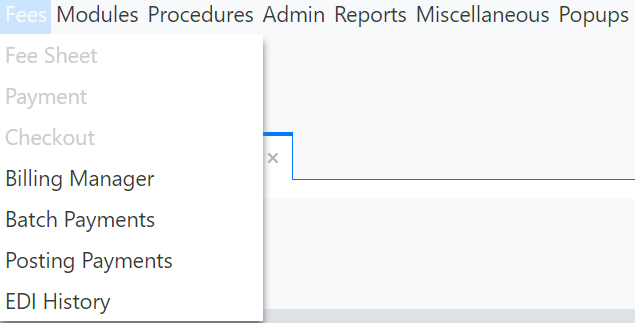
2. From the main menu select "Fees", under that menu select "Posting Payments"
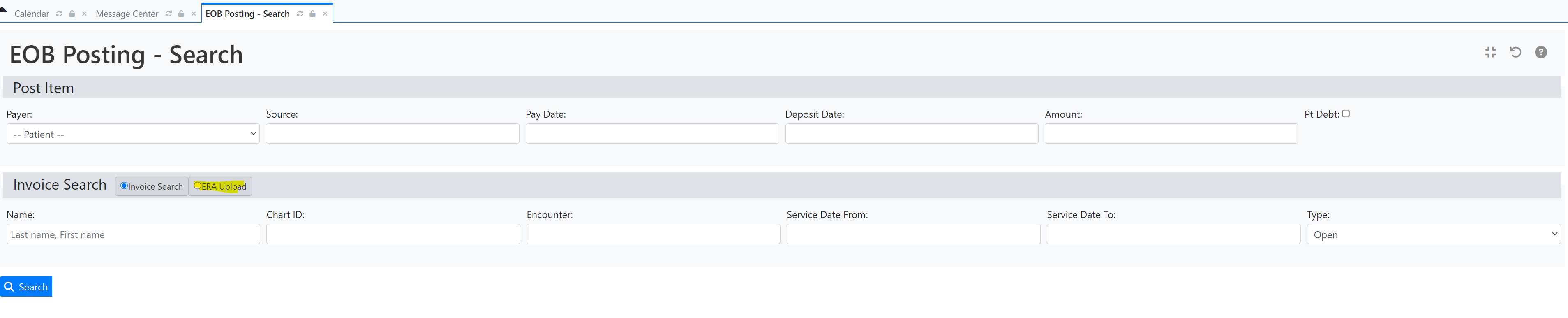
3. From the "EOB Posting - Search" screen click the radio button "ERA Upload"
4. The screen will change to the following screen
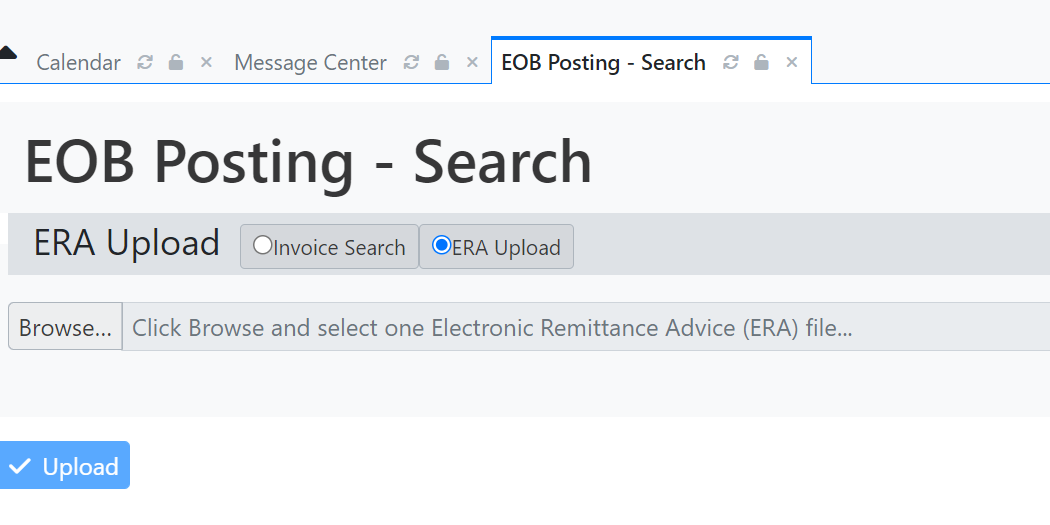
5. Choose the ERA file downloaded from the ClaimRev portal, using the "Browse" button.
6. Click the Upload Button
7. From this point on, OpenEMR takes care of things, any further questions or concerns please contact your OpenEMR Vendor or reach out to the community message boards.
Once the ERA is uploaded, OpenEMR will process the file and update the respective claims. Ensure you review any errors or notifications displayed after the upload to address any discrepancies.
—-
How do I check the status of my claim?
To check the status of your claim in the ClaimRev portal, follow these steps:
1. Log in to the ClaimRev Processing Portal at [[https://portal.claimrev.com|portal.claimrev.com]].
2. Navigate to the **Claims** section from the main dashboard.
3. Use the search bar to locate your claim by its Claim ID, Patient Name, or Date of Service.
4. Click on the desired claim to view its detailed status.
The claim status will include details such as whether it has been submitted, processed by the payer, or requires additional information.
faq.1737058132.txt.gz · Last modified: by brad.sharp