Table of Contents
How to Upload Claim Files
This guide walks you through uploading claim files to the ClaimRev Portal.
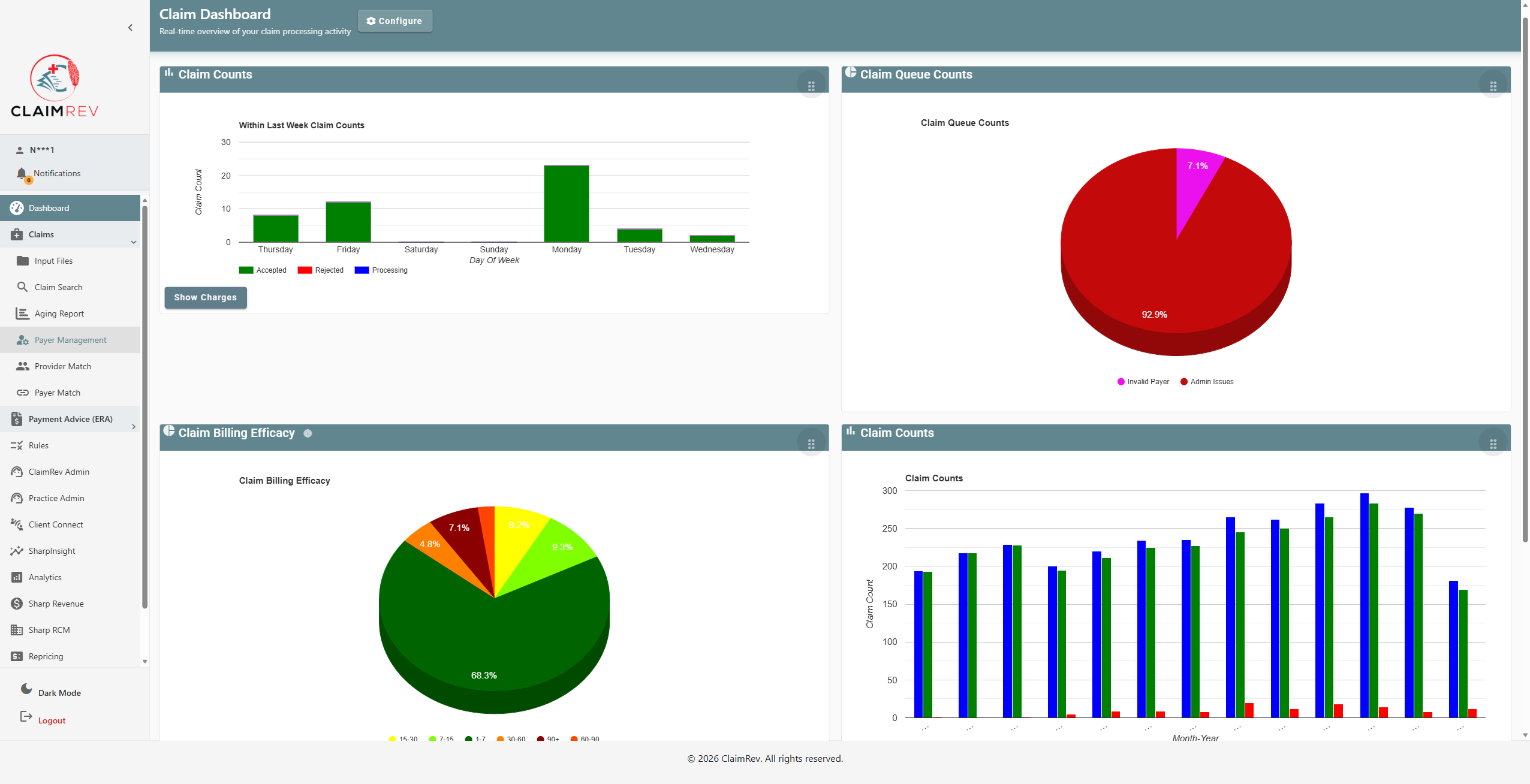
Step 1: Navigate to Input Files
From the Dashboard, locate the left-hand navigation menu. Click on Claims to expand the claims submenu, then click Input Files.
Step 2: The Input Files Page
The Input Files page allows you to search for previously uploaded files and upload new ones.
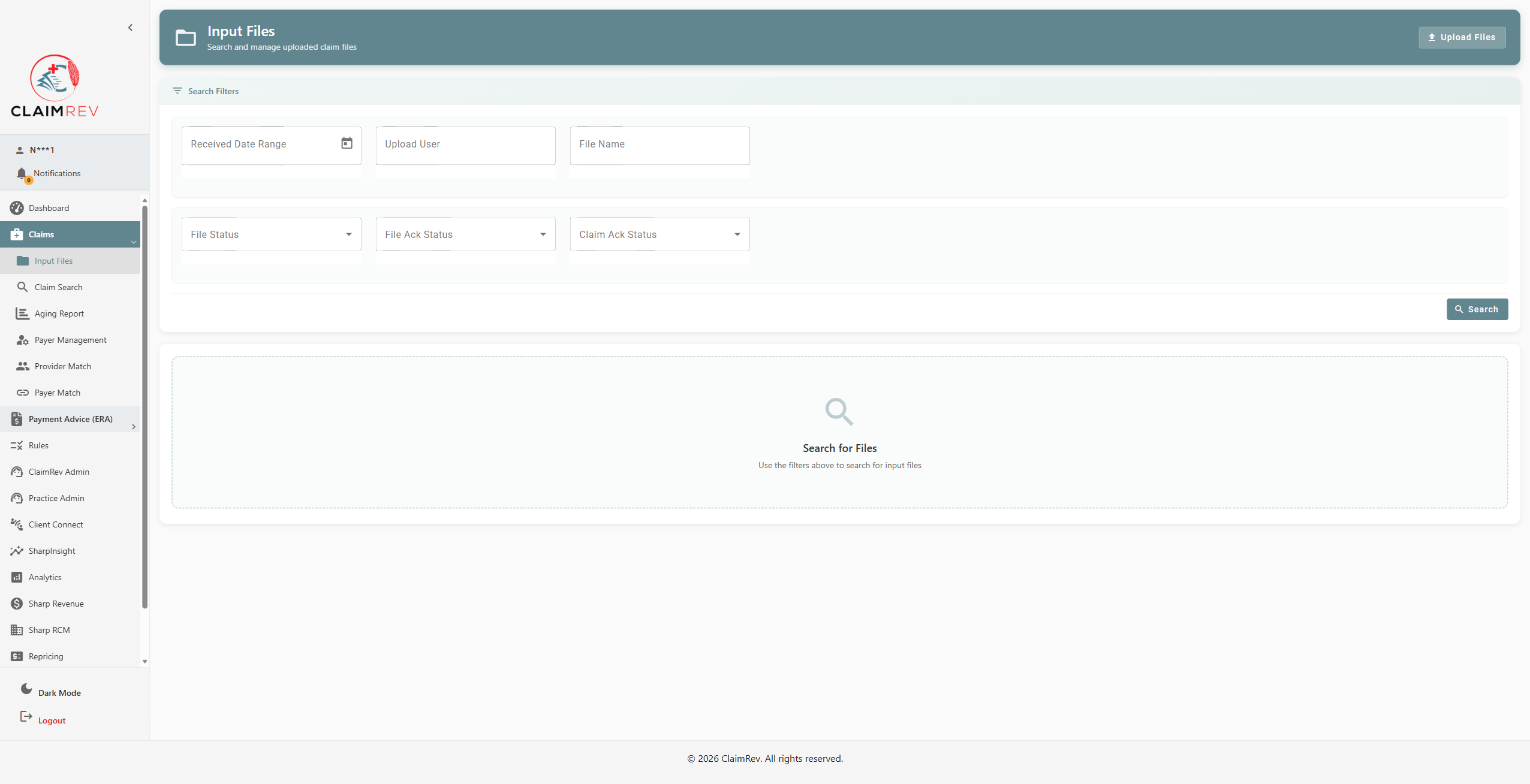
You'll see the following on this page:
- Upload Files button — located in the top-right corner (teal button). Click this to upload new files.
- Search Filters — use these to find previously uploaded files:
- Received Date Range — filter by when the file was received
- Upload User — filter by who uploaded the file
- File Name — search by file name
- File Status — filter by processing status
- File Ack Status — filter by file acknowledgment status
- Claim Ack Status — filter by claim acknowledgment status
- Search button — click to apply your filters and view results
Step 3: Upload Your File
Click the Upload Files button in the top-right corner. A dialog will appear:
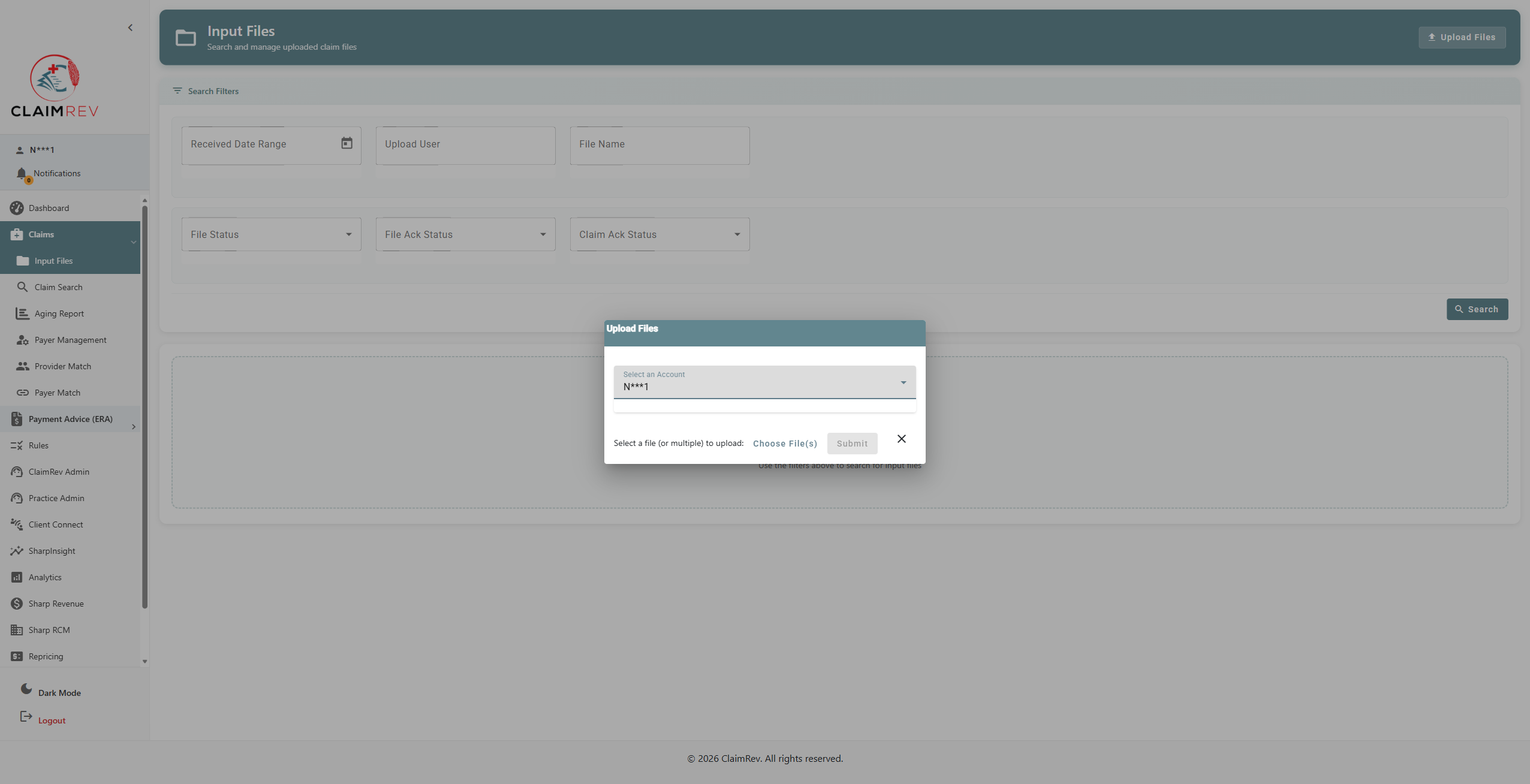
- Select an Account — choose the account you want to upload the file under (your default account will be pre-selected)
- Click Choose File(s) — browse your computer and select one or more claim files to upload
- Once your file(s) are selected, the Submit button will become active
- Click Submit to upload your file(s)
- To remove a selected file before submitting, click the X button
Tip: You can select multiple files at once by holding Ctrl (or Cmd on Mac) while clicking files in the file browser.
Step 4: View Your Uploaded Files
After uploading, click Search (with no filters) to see all your files, or use the filters to narrow results. Your uploaded files will appear in a table:
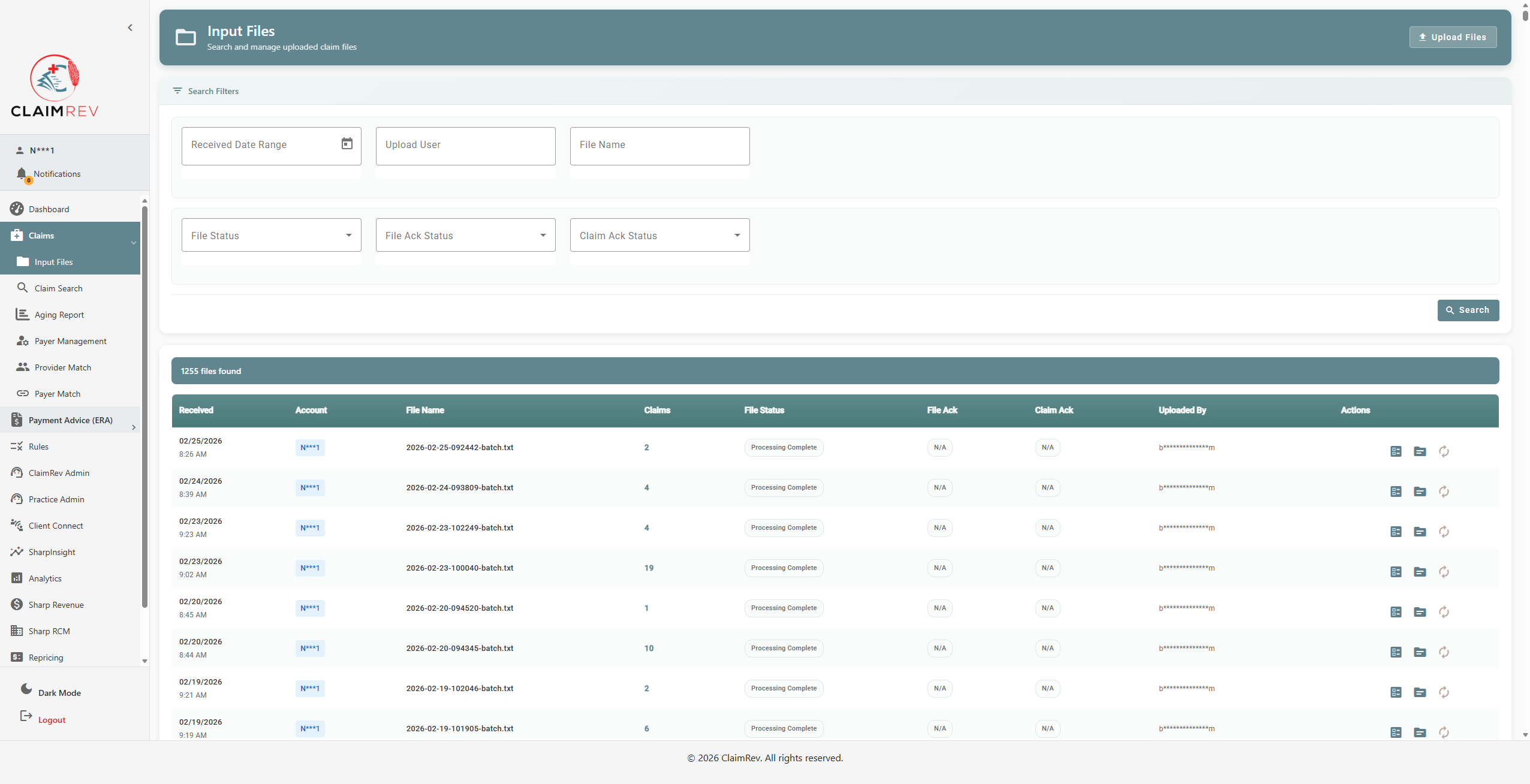
The results table shows the following columns:
| Column | Description |
|---|---|
| Received | Date and time the file was received by ClaimRev |
| Account | The account the file was uploaded under |
| File Name | Name of the uploaded file |
| Claims | Number of claims found in the file |
| File Status | Current processing status (e.g., “Processing Complete”) |
| File Ack | File-level acknowledgment status from the payer |
| Claim Ack | Claim-level acknowledgment status from the payer |
| Uploaded By | The user who uploaded the file |
| Actions | Action icons (see below) |
Step 5: Using the Action Icons
Each file row has three action icons on the right side:
| Icon | Action | Description |
|---|---|---|
 View Claims View Claims | Opens the claims that were extracted from this file. This shows each individual claim with patient info, payer info, provider details, billed amounts, and current status. See Claim Search for a detailed breakdown. | |
 View File View File | Displays the raw EDI content of the submitted file. Useful for troubleshooting file formatting issues. | |
 Reprocess File Reprocess File | Resubmits the file for processing. Use this if a file had errors that have since been resolved. |
View Claims
Clicking View Claims opens a detailed view of all claims contained in the file:
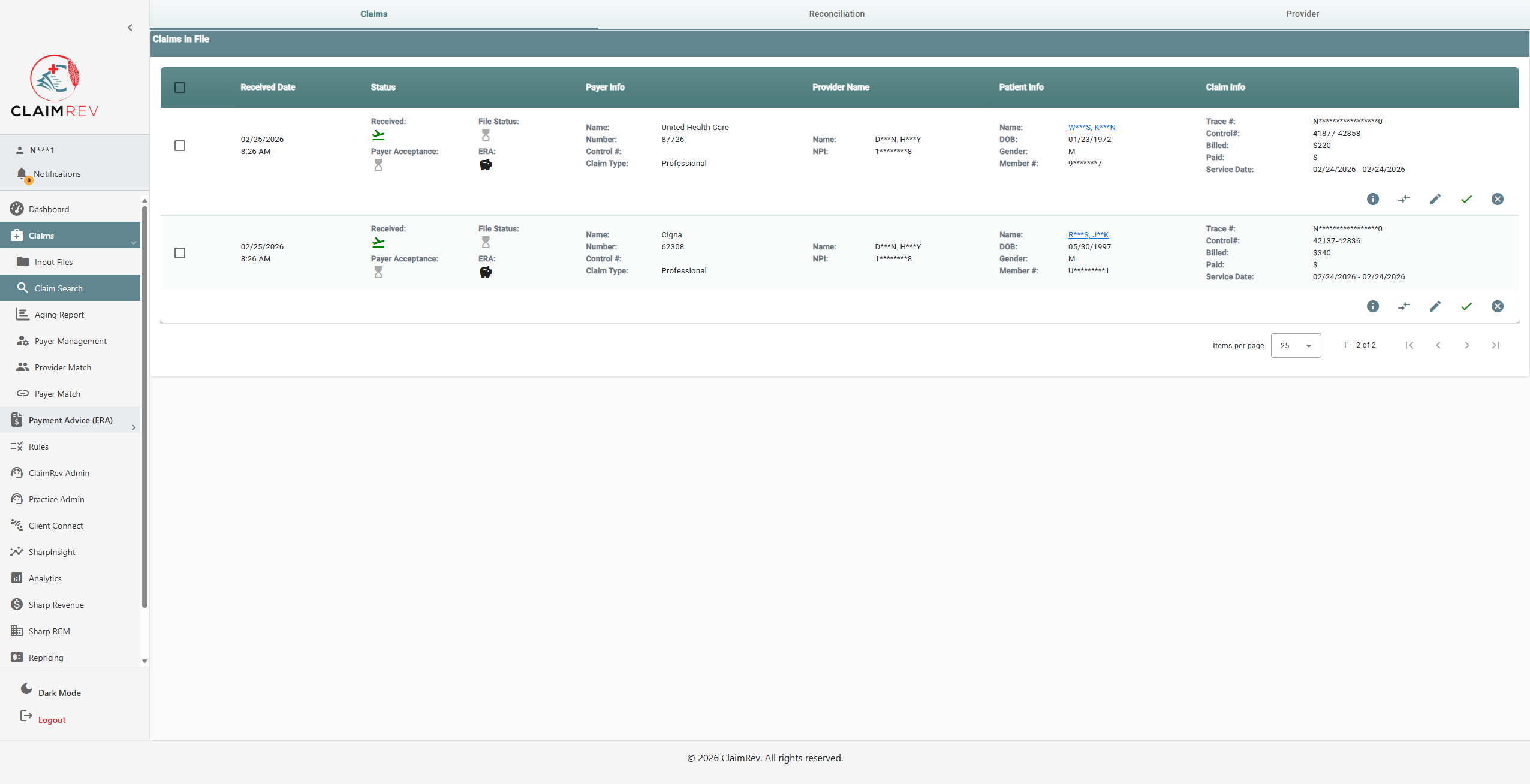
For each claim, you'll see:
- Received Date — when the claim was received
- Status — file status, payer acceptance status, and ERA status icons
- Payer Info — payer name, payer number, control number, and claim type (Professional, Institutional, Dental)
- Provider Name — the rendering provider's name and NPI
- Patient Info — patient name, date of birth, gender, and member number
- Claim Info — trace number, control number, billed amount, paid amount, and service dates
Each claim row also has its own set of action icons on the right for viewing claim details, splitting claims, editing, accepting, or rejecting.
Tip: For a full explanation of every column, status icon, and action available on this screen, see Claim Search.
Understanding File Status
- Processing Complete — the file has been fully processed and claims have been extracted
- Processing — the file is currently being parsed
- Error — there was a problem processing the file; check the file details for more information
Understanding Acknowledgment (Ack) Status
After claims are sent to payers, you'll receive acknowledgments:
- File Ack (999) — confirms the payer received and accepted the file format
- Claim Ack (277) — confirms individual claims were accepted or rejected by the payer
- N/A — acknowledgment has not yet been received
Supported File Formats
ClaimRev accepts standard EDI healthcare files:
| File Type | Description |
|---|---|
| 837P | Professional claims |
| 837I | Institutional claims |
| 837D | Dental claims |
| 835 | Electronic Remittance Advice (ERA) — payment information from payers |
Uploading 835 ERA Files
In addition to submitting claims, you can upload 835 ERA files (Electronic Remittance Advice) through the same Input Files upload process. This is a powerful feature that automates payment posting.
How it works:
- Upload your 835 file using the same Upload Files button
- ClaimRev automatically parses the ERA and extracts payment details
- The system matches payments to existing claims in your account — linking each payment, adjustment, and denial back to the original claim
- Once matched, you can view payment details directly on each claim
Important: This means you don't have to manually post payments from your ERA. Upload the 835 and ClaimRev does the matching for you — saving significant time and reducing data entry errors.
What gets matched:
- Payment amounts per claim and per service line
- Adjustment reason codes (CO, PR, OA, etc.)
- Denial reasons
- Check/EFT reference numbers
- Payer-assigned claim control numbers
You can view matched ERA data in the Payment Advice (ERA) section of the left navigation menu, or by viewing individual claim details.
See also: Claim Search
Need help? Contact ClaimRev support.