Table of Contents
Claim Search
The Claim Search screen is your primary tool for finding, reviewing, and working claims in the ClaimRev Portal. Navigate here from the left menu: Claims → Claim Search.
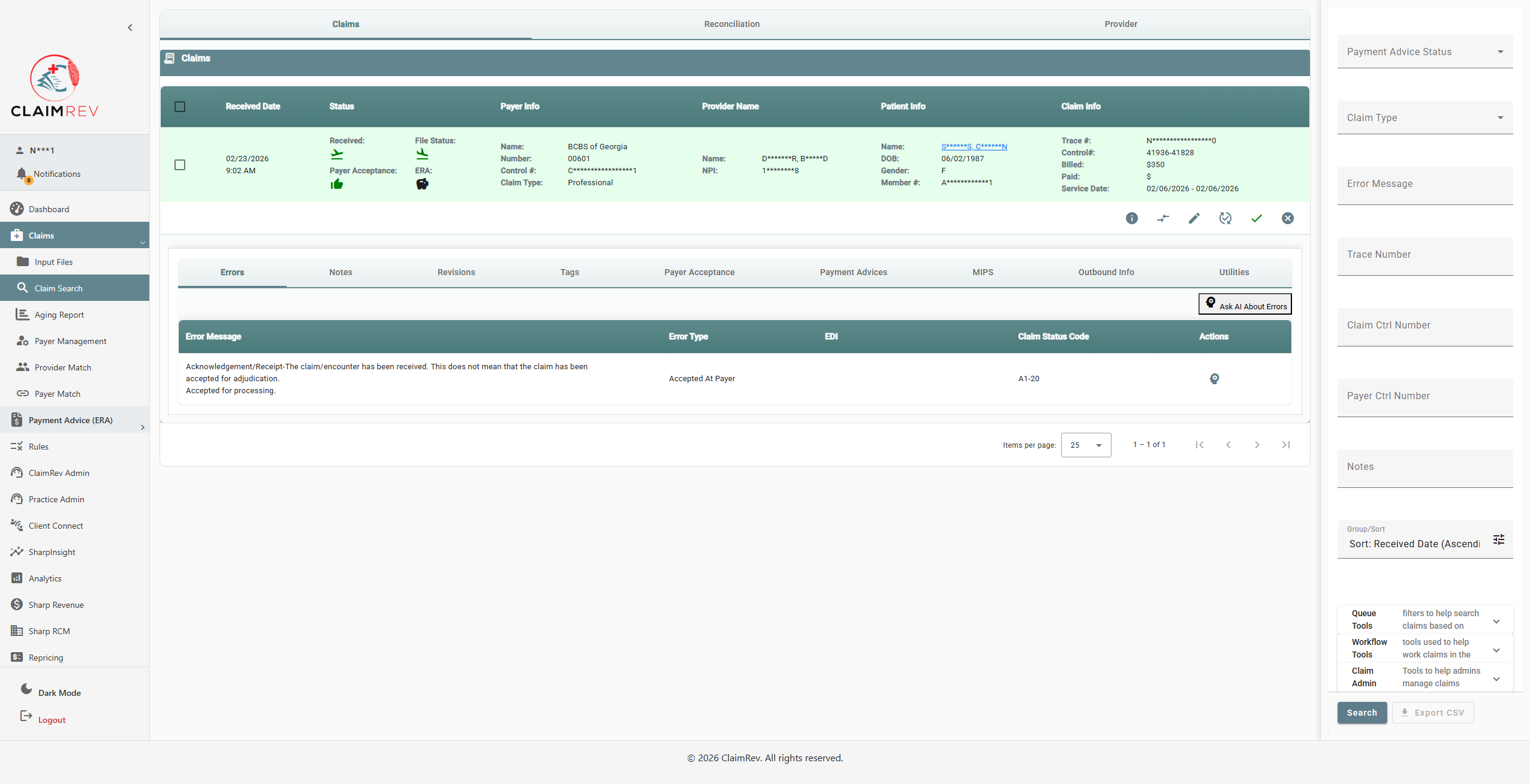
The page is divided into three areas:
- Top Tabs — switch between Claims, Reconciliation, and Provider views
- Main Area — the claim results table with expandable detail rows
- Right Panel — search filters and tools
Search Filters (Right Panel)

The right-side panel contains all search criteria. Use any combination of filters to narrow your results:
- Payment Advice Status — filter by ERA payment status
- Claim Type — Professional, Institutional, or Dental
- Error Message — search by error text
- Trace Number — find a specific claim by its trace number
- Claim Ctrl Number — search by claim control number
- Payer Ctrl Number — search by payer-assigned control number
- Notes — search within claim notes
- Group/Sort — change how results are ordered (default: Received Date Ascending)
At the bottom of the panel you'll find:
- Queue Tools — filters to help search claims based on queues
- Claim Admin — tools to help admins manage claims (e.g., update status)
- Search button — run the search
- Export CSV button — download your search results as a CSV file
Tip: Click the edge of the right panel to collapse or expand it, giving more room to the claims table.
The Claims Table
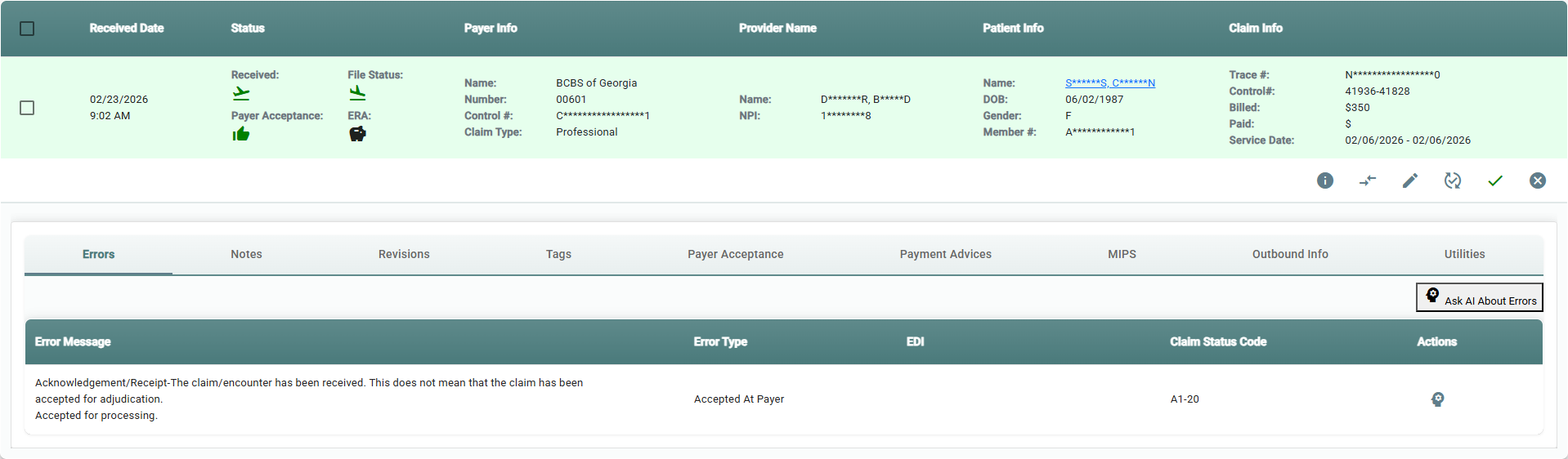
Each claim appears as a row with the following columns:
| Column | What It Shows |
|---|---|
| Received Date | Date and time the claim was received (e.g., 02/23/2026 9:02 AM) |
| Status | Four status icons in a grid — see Status Icons below |
| Payer Info | Payer name, payer number, control number, and claim type (Professional/Institutional/Dental) |
| Provider Name | Rendering provider name and NPI |
| Patient Info | Patient name (clickable), DOB, gender, and member number |
| Claim Info | Trace number, control number, billed amount, paid amount, and service date range |
| Actions | Action buttons — see Action Buttons below |
Row Colors:
- Green background — payer has accepted the claim
- Red/pink background — claim was rejected (either during processing or by the payer)
- Yellow background — claim is pending
Status Icons
The Status column shows four icons arranged in a 2×2 grid. Each icon tells you where the claim stands in the processing pipeline:
| Position | Label | What It Means |
|---|---|---|
| Top-Left | Received | Claim processing status within ClaimRev |
| Top-Right | File Status | Whether the payer received and accepted the file |
| Bottom-Left | Payer Acceptance | Whether the payer accepted or rejected the claim itself |
| Bottom-Right | ERA | Whether payment information (835 ERA) has been matched |
Accepted Claim

The claim has been successfully processed and accepted:
- Received — green airplane, claim was sent to the payer
- File Status — green airplane, payer accepted the file
- Payer Acceptance — green thumbs up, payer accepted the claim
- ERA — grey piggy bank, awaiting payment
Accepted and Paid (ERA Matched)

This is the complete happy path — the claim has been accepted and payment has been received:
- Received — green airplane, claim was sent
- File Status — green airplane, file accepted
- Payer Acceptance — green thumbs up, claim accepted
- ERA — green piggy bank, ERA has been received and matched
When the ERA is matched, the Paid amount in the Claim Info column will show the actual payment (e.g., $156.20 on a $200 billed claim). Click the green piggy bank icon to open the full ERA details and see the payment breakdown, adjustment codes, and any denials at the service line level.
Errored Claim (Not Sent)

The claim has errors that prevented it from being sent to the payer:
- Received — red sick face, claim was rejected during processing
- File Status — grey pending, file was never sent
- Payer Acceptance — grey pending, never reached the payer
- ERA — grey piggy bank, no payment information
Important: When you see a red sick face on the Received status, the claim has errors that must be fixed before it can be sent to the payer. Click the Details button and check the Errors tab to see what needs to be corrected.
Payer Rejected Claim

The claim was sent and the file was accepted, but the payer rejected the claim itself:
- Received — green airplane, claim was sent successfully
- File Status — green airplane, payer accepted the file
- Payer Acceptance — red sick face, payer rejected the claim
- ERA — grey piggy bank, no payment (claim was not processed)
Notice the pink/red row background — this immediately signals the claim needs attention. Unlike an errored claim that never left ClaimRev, a payer-rejected claim made it to the payer but was returned. You'll need to review the rejection reasons, correct the claim, and use Replace/Void to resubmit.
All Received Status Icons (Top-Left)
| Icon | Color | Meaning |
|---|---|---|
| Construction | — | Claim is being processed |
| Airplane (takeoff) | Green | Claim has been sent to the payer |
| Sick face | Red | Claim was rejected during processing |
| Stop | Red | Claim processing was stopped |
| Redo | Green | Claim has been reprocessed |
All File Status Icons (Top-Right)
| Icon | Color | Meaning |
|---|---|---|
| Airplane (landing) | Green | Payer accepted the file (999 acknowledgment received) |
| Sick face | Red | Payer rejected the file |
| Pending | Orange | Awaiting file acknowledgment |
| Hourglass | Orange | File acknowledgment in progress |
All Payer Acceptance Icons (Bottom-Left)
This is the most important status indicator — it tells you if the payer accepted your claim.
| Icon | Color | Meaning |
|---|---|---|
| Thumbs Up | Green | Payer accepted the claim |
| Sick face | Red | Payer rejected the claim — action needed |
| Pending | Orange | No acceptance status yet |
| Hourglass | Orange | Acceptance determination in progress |
| Clock | Light Blue | Pending at payer |
| Question mark | Grey | Unknown status |
Important: The green thumbs up means the payer has acknowledged receipt of the claim and accepted it for processing. This does not necessarily mean the claim has been paid — check the ERA status for payment information.
All ERA Status Icons (Bottom-Right)
| Icon | Color | Meaning |
|---|---|---|
| Piggy bank | Green | ERA has been received and matched to this claim (clickable — opens ERA details) |
| Piggy bank | Red | ERA received but payment was denied |
| Piggy bank | Grey | No ERA matched yet |
Action Buttons
Each claim row has action buttons on the right. The buttons shown depend on the claim's current status and your permissions.
Accepted Claim

Shows the full set of actions including Replace/Void and the green checkmark (Mark As Worked).
Errored Claim

Shows a red exclamation mark (Mark As Worked) indicating this claim needs attention. No Replace/Void option since it never reached the payer.
Payer Rejected Claim

Shows the Replace/Void button (circular arrows) — since the payer rejected this claim, you can correct it and resubmit a replacement, or void it entirely. Also shows the red exclamation (not yet worked).
All Action Buttons
| Icon | Name | Description |
|---|---|---|
| Info circle | Details | Expands the claim row to show detail tabs (Errors, Notes, Revisions, etc.) |
| Arrows | Add to Compare | Adds the claim to a comparison view for side-by-side review of multiple claims |
| Pencil | Edit Claim | Opens a menu with two options: Editor 2.0 (New) and Classic Editor. The editor varies by claim type (Professional, Institutional, or Dental). |
| Clock with actions | Status Request | Request a real-time status update from the payer. Only appears when the claim is eligible for a status check. |
| Upload file | Upload Attachments | Appears when the payer has requested additional documentation. Upload supporting files here. |
| Assignment alert | Payer Requested Attachments | Orange warning icon — indicates the payer is requesting additional information for this claim. |
| Replace arrows | Replace/Void | Available after a claim has been accepted or rejected by the payer. Use this to submit a corrected replacement claim or void the original. |
| Exclamation (red) / Checkmark (green) | Mark As Worked / Not Worked | Toggle to track your workflow. Red exclamation means “not worked yet.” Green checkmark means “worked.” Click to toggle. |
| X circle | Mark Claim As Void | Voids the claim, removing it from active processing. |
Tip: Not all buttons appear on every claim. For example, Replace/Void only shows after payer acceptance or rejection, and Upload Attachments only shows when the payer has requested documents.
Expanded Detail Tabs
Click the Details (info) button on any claim to expand it and reveal detail tabs:

| Tab | Description |
|---|---|
| Errors | Shows processing errors and payer responses. Includes an “Ask AI About Errors” button that can help explain error codes. |
| Notes | View and add notes to the claim. Great for documenting follow-up actions. |
| Revisions | History of all changes made to the claim. |
| Tags | Labels assigned to the claim for categorization. |
| Payer Acceptance | Detailed payer acceptance/rejection information including reason codes. |
| Payment Advices | ERA payment details — amounts paid, adjustments, denial reasons. |
| MIPS | Quality reporting data (only visible if your account has MIPS enabled). |
| Outbound Info | Technical EDI transmission details (admin only). |
| Utilities | Administrative utility functions (admin only). |
Errors Tab: Accepted Claim

When a claim is accepted, the Errors tab shows a confirmation message like “Acknowledgement/Receipt: The claim/encounter has been received” with an Error Type of “Accepted At Payer” and a Claim Status Code like A1:20 (accepted for processing).
Errors Tab: Errored Claim

When a claim has processing errors, you'll see specific messages explaining what went wrong. In this example:
- “LOOP 2400 SEGMENT SV1 … POINTING TO A DIAGNOSIS CODE >E66< THAT HAS EXPIRED” — The diagnosis code E66 has expired and is no longer valid for the date of service.
- “LOOP 2300 SEGMENT HI INVALID DIAGNOSIS CODE E66” — The diagnosis code is invalid and needs to be corrected.
To fix: Click the Edit Claim (pencil) button, correct the diagnosis code, and resubmit.
Errors Tab: Payer Rejected Claim
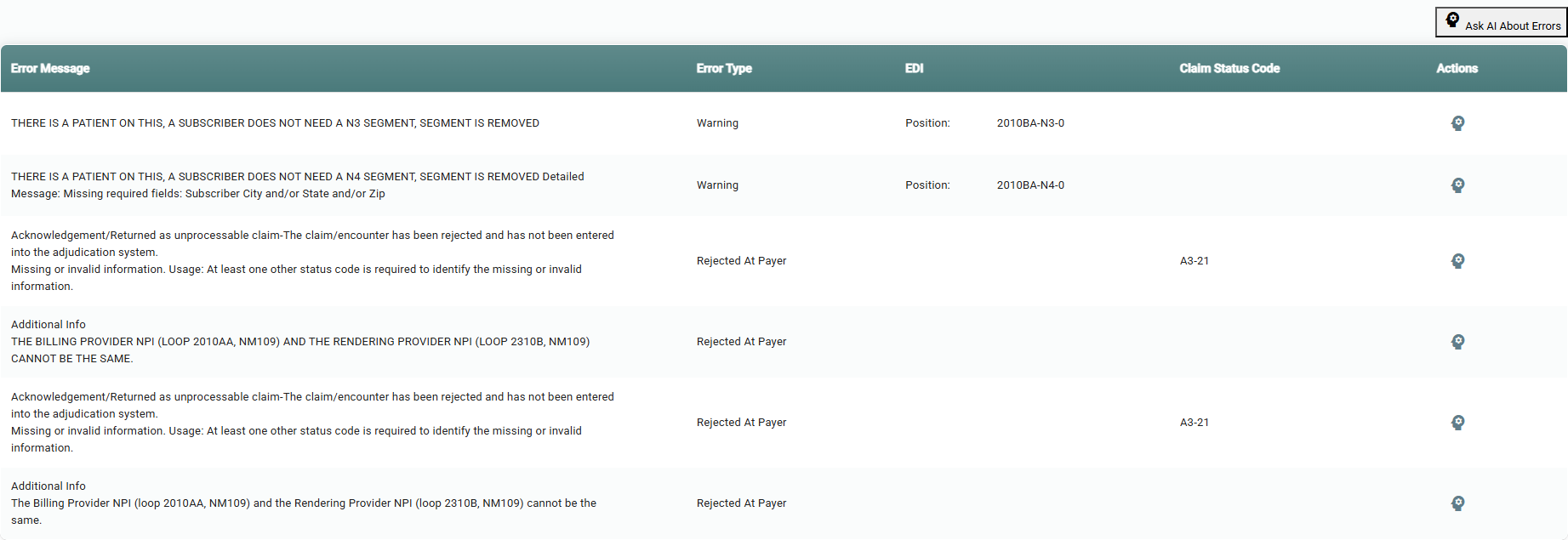
When a payer rejects a claim, you'll see detailed rejection reasons. In this example:
- Warnings about subscriber segments being removed (N3, N4 segments — missing subscriber address fields)
- “Rejected At Payer” with code A3:21 — “The claim/encounter has been rejected and has not been entered into the adjudication system. Missing or invalid information.”
- Additional Info: “THE BILLING PROVIDER NPI (LOOP 2010AA, NM109) AND THE RENDERING PROVIDER NPI (LOOP 2310B, NM109) CANNOT BE THE SAME” — the billing and rendering provider NPIs must be different
To fix: Click Edit Claim to correct the issues (e.g., update the rendering provider NPI), then use the Replace/Void button to resubmit the corrected claim to the payer.
Each error row includes:
- Error Message — the full text of the status or error
- Error Type — category: “Warning” (informational), “Claim Error” (processing issue), or “Rejected At Payer” (payer rejection)
- EDI — the specific EDI segment position where the issue was found
- Claim Status Code — the industry-standard status code (e.g., A3:21)
- Actions — gear icon for additional options
Tip: Click “Ask AI About Errors” in the top-right corner to get an AI-powered explanation of the error codes and suggestions for how to fix them. This is especially helpful for complex EDI errors and payer-specific rejection reasons.
Top Tabs
| Tab | Description |
|---|---|
| Claims | The default view — shows individual claim rows with all details described above |
| Reconciliation | Summary view of payment reconciliation data for your search results |
| Provider | Groups claims by rendering provider for a provider-level summary |
Tips for Working Claims
- Click a patient name (shown as a link) to go to Sharp Revenue where you can run an eligibility check for that patient
- Use the checkbox on the left of each claim to select multiple claims for bulk actions
- If Paid shows “$” with no amount, the ERA has not been received yet
- Use Export CSV to pull claim data into a spreadsheet for further analysis
- The Group/Sort control lets you change ordering — useful when working through a large set of claims
- When fixing rejected claims, always use Replace/Void rather than submitting a brand new claim — this links the replacement to the original for proper tracking
See also: How to Upload Claim Files
Need help? Contact ClaimRev support.